
Connect Onshape
Connect your own Onshape account once. Partix then acts as you when you link, pull, push or view a model.
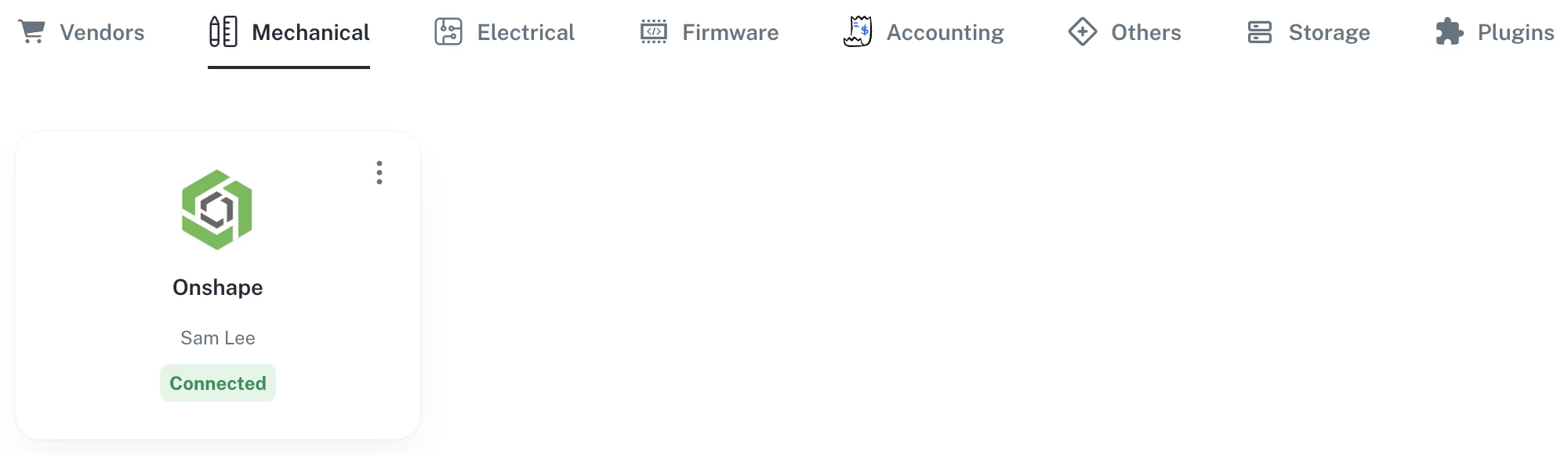
Connect
- Open Auth › Mechanical.
- Open the ⋮ menu on the Onshape card and choose Connect.
- Choose Continue to Onshape and sign in.
- Choose Allow when Onshape asks to let Partix Inc. read and write your documents.
The dialog shows Connected as your name. The account must belong to your company's Onshape.
Your own account
Onshape records every push under the person who made it. Partix never uses someone else's connection. Anyone can view the MCAD list without connecting.
Status
The dot beside Link on the MCAD tab:
| Dot | Meaning |
|---|---|
| Green | Connected |
| Amber | Sign in to Onshape again |
| Gray ring | Not connected. Link is off |
Disconnect
On the Auth page, open the ⋮ menu on the Onshape card and choose Disconnect. Links and BOMs are not affected.