
Link an item
Join an Onshape assembly or part to an item already in a Partix BOM.
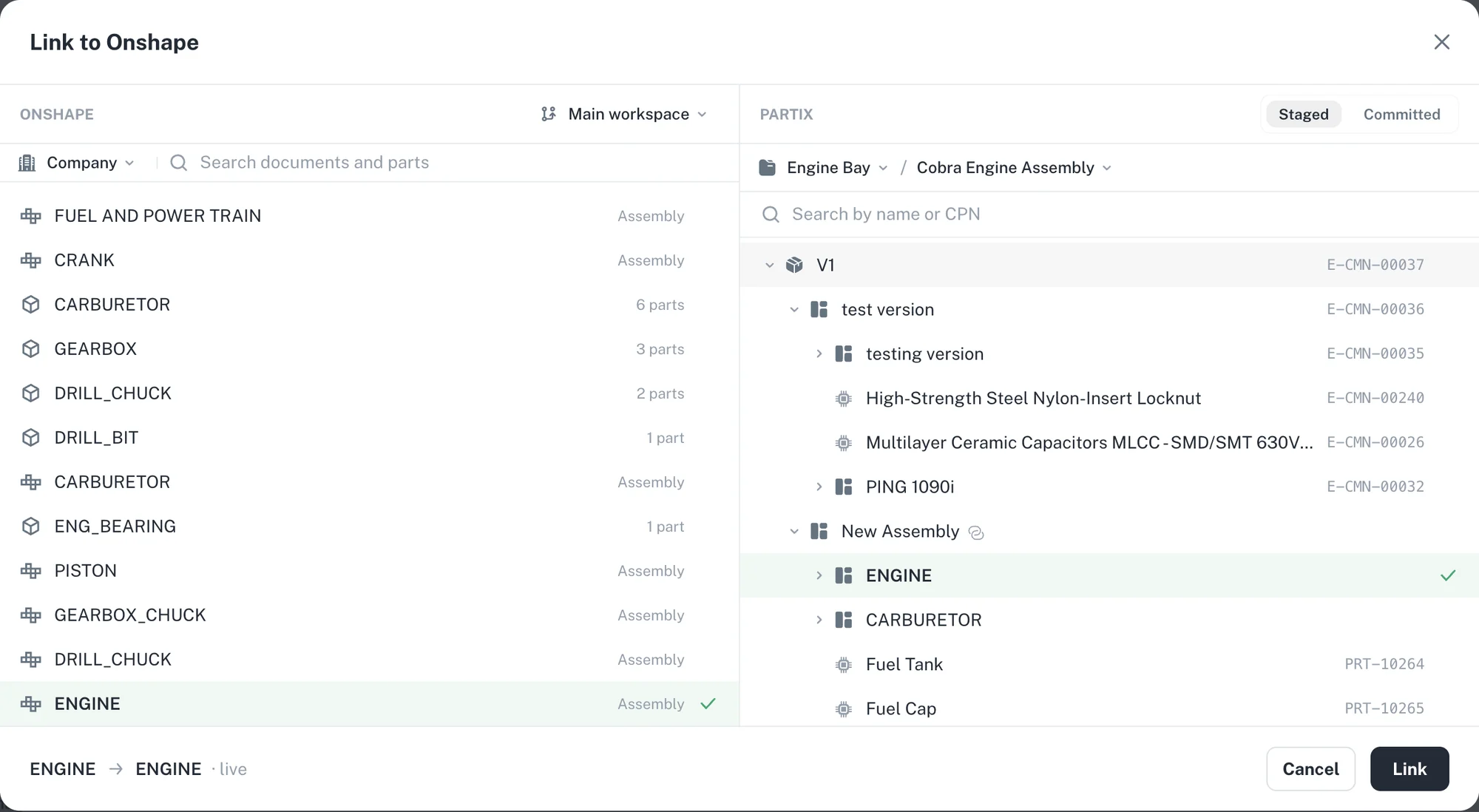
Link
- Open Engineering › MCAD and choose Link.
- On the Onshape side, pick the assembly or part, and the workspace or version to follow. In a Part Studio, pick the part.
- On the Partix side, choose Staged or Committed, the project and product, then the item.
- Choose Link.
When the Onshape part number matches a CPN, Partix selects that item for you.
To link from a BOM, open the item's Engineering › Mechanical tab and choose Link to Onshape. Only the Onshape side is left to choose.
What links to what
| Onshape | Partix |
|---|---|
| Assembly | Assembly or product |
| Part | Part |
Staged or committed
| Partix | Onshape | Link |
|---|---|---|
| Staged | A workspace | Live: pulls bring in changes |
| Committed | A version | Pinned: records what was released; never pulled |
A committed item needs the Onshape document to have a version.
Unlink
Choose Unlink from the row menu. Pulled BOM lines stay, and nothing changes in Onshape.