
Create a revision
Start a new revision when a part's design changes. Each revision keeps its own stock, images and documents.
Create one
- Open the part and open the revision picker in the toolbar.
- Choose Create revision.
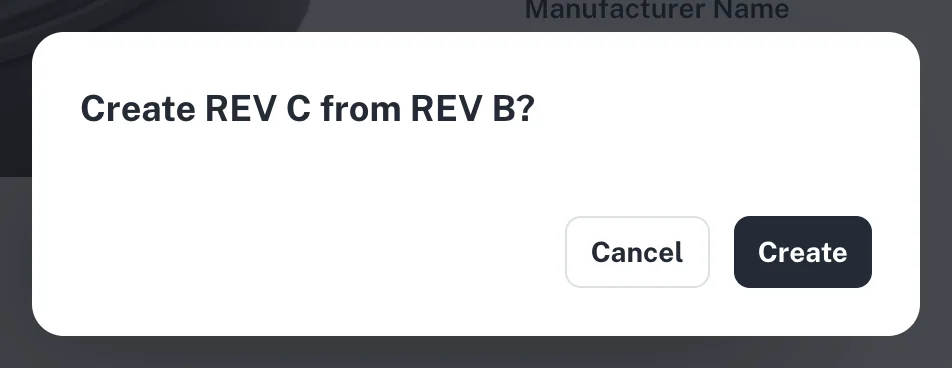
- Confirm, for example Create REV C from REV B?
The dialog switches to the new revision. Labels follow the part's scheme: B after A,
3 after 2. Revisions are turned on for the part if they were off.
What it copies
The new revision copies the part's latest revision, not necessarily the one on screen.
| Copied | Not copied |
|---|---|
| Descriptions, unit price, unit of measure | Stock, which starts at 0 |
| Costing method and serial tracking | Locations, lots and serial numbers |
| Attributes | Purchase history |
| Images and documents |
The new revision starts as active. The older revision is not changed.
Images and documents are shared, so removing one from the new revision leaves the older revision's copy in place.
Who can create one
Admins, purchasers and managers.
Parts only
Assemblies, subassemblies and products get new revisions when their BOM is committed. See How releases work.
Stock moves
Receiving, purchasing, cycle counting and other stock moves still apply to the part's first revision. Choosing a revision for each move is planned.